
How to Set Up Your Holafly Phone Number on Plans Unlimited
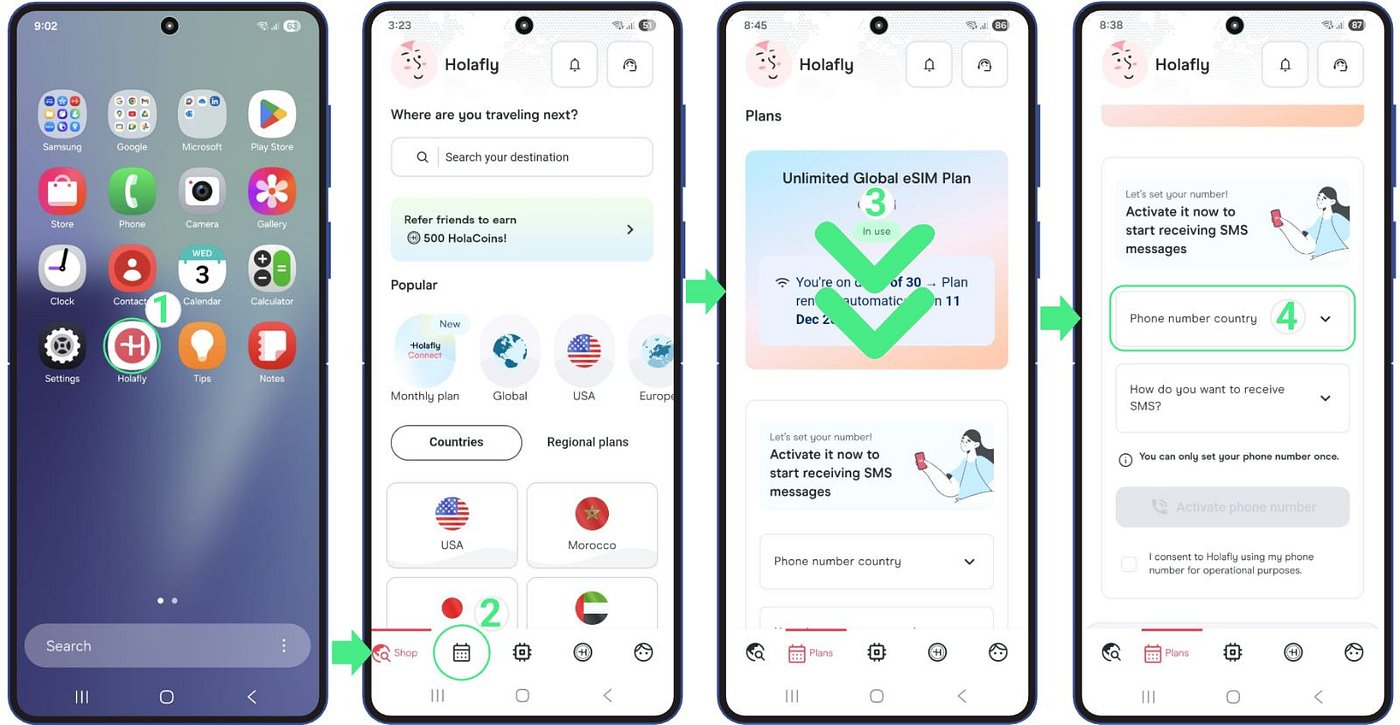
Open the Holafly App → tap Plans → scroll to "Let's set your number" → choose your destination (Canada, UK, or US) → select how you want to receive SMS (App or Email) → check the consent box → tap Activate phone number. One-time setup — the number cannot be changed once activated.
One of the most useful features of Holafly Plans Unlimited is the included phone number for receiving SMS — which solves a problem most travelers don't think about until they're stuck. After 9 years of full-time family travel, this is the feature that's saved us when a bank or service needed to text a verification code at the worst possible moment. Here's exactly how to set it up.
10% off monthly Plans · 32% off annual Plans · unlimited uses, every purchase
Get Holafly Plans →What is the Holafly phone number feature?
Holafly Plans Unlimited includes a phone number that lets you receive SMS messages — like verification codes from banks, airlines, and online services — while you travel. This matters because so much of modern life relies on SMS two-factor authentication (2FA): logging into your bank, confirming a payment, accessing an account from a new device.
When you're traveling and your home SIM is inactive or roaming is off, those SMS codes can't reach you — locking you out of your own accounts at the worst possible time. The Holafly phone number gives you a reliable destination for those messages.
How to set up your Holafly phone number: step by step
The whole setup takes about a minute in the Holafly App. The screenshots below walk through every tap.
-
Open the Holafly App
Tap the Holafly app icon on your phone's home screen.
-
Tap Plans
From the bottom navigation bar, tap the Plans icon.
-
Scroll to "Let's set your number"
You'll see your active Plan card at the top. Scroll down to the "Let's set your number" section.
-
Tap Phone number country
Tap the Phone number country dropdown to open the country picker.
-
Choose your destination
Pick one: Canada (+1), United Kingdom (+44), or United States (+1). Choose carefully — this is permanent.
-
Tap Save
Confirm your country choice by tapping the pink Save button.
-
Tap "How do you want to receive SMS?"
Back on the setup screen, tap the dropdown to choose your delivery method.
-
Select App or Email
Choose Push notification (in app) to read SMS inside the Holafly app, or Email to have them forwarded to your inbox. Most travelers prefer the in-app option for speed.
-
Tap Save
Confirm your SMS delivery method by tapping Save.
-
Check the consent box
Tick the box that says "I consent to Holafly using my phone number for operational purposes."
-
Tap Activate phone number
Hit the pink Activate phone number button. Your number is now live and ready to receive SMS messages.

Once you activate your Holafly phone number, it cannot be changed. This is a one-time setup. Choose your destination — Canada, United Kingdom, or United States — carefully, because you won't be able to switch it later.
Think about which destination makes the most sense for the services you use. If your bank or key accounts are tied to a specific region, picking the matching destination can help ensure SMS codes are accepted without issues. Take a moment to decide before you tap Activate.
What you can and can't do with the Holafly number
What you CAN do
- Receive SMS messages (verification codes, 2FA, banking confirmations)
- Receive SMS via Push notification in the Holafly app
- Receive SMS forwarded to your email address
- Use it as a reliable destination while your home SIM is off or roaming is disabled
- Use it in addition to your home SIM (both can be active)
What you CAN'T do
- Make or receive regular voice phone calls
- Send outbound SMS messages
- Change the number once it's activated
- Use it on a Holafly destination eSIM (Plans Unlimited only)
Why this feature matters for travelers
The SMS verification problem is one of the most underrated headaches in international travel. Here's the scenario that catches people out:
You're abroad. Your home SIM is off (to avoid roaming charges) or inactive. You try to log into your bank, make an online payment, or access an account from your phone — and the service insists on texting a verification code to your registered number. That code goes to a SIM that isn't receiving anything. You're locked out.
With the Holafly phone number, you have a working destination for those SMS codes. You set it up once, choose how you want to receive the messages, and you're covered for the rest of your travels.
For us — managing a business remotely, accessing banking from the other side of the world, and dealing with the constant 2FA requirements of modern online life — having a reliable number to receive codes has genuinely prevented account lockouts more than once. It's one of those quiet features you don't appreciate until the moment it saves you.
What if I don't see the option to set a number?
If you open the Holafly App and don't see the "Let's set your number" section, it means your plan doesn't include one. The phone number feature is included only with Holafly Plans Unlimited. If you're on a different plan or an individual destination eSIM, the feature won't be available.
To get the phone number feature, you'll need a Holafly Plans Unlimited subscription. Use code THEDUFRESNES for 10% off monthly or 32% off annual.
FAQ: Holafly phone number
Can I make phone calls with my Holafly number?
No — the number is for receiving SMS only. For calls, use WhatsApp, Telegram, FaceTime, or Google Meet over your Holafly data. These apps work anywhere you have a connection.
Can I send text messages from my Holafly number?
No — it's for receiving SMS only, not sending. Use messaging apps like WhatsApp, Telegram, or iMessage for outbound communication.
Can I change my Holafly number after activating it?
No. This is a one-time setup and the number cannot be changed once activated. Choose your destination carefully before tapping Activate.
Which destinations can I choose for my number?
Three options: Canada (+1), United Kingdom (+44), or United States (+1). Pick whichever country code is most likely to be accepted by the services you'll need to receive SMS from.
How do I receive my SMS messages?
During setup, you choose between two options: Push notification inside the Holafly app, or Email forwarding to your inbox. Most travelers prefer the in-app option for instant delivery.
Why would I need a phone number while traveling?
Mainly for receiving SMS verification codes (2FA) from banks, airlines, and online services — essential when your home SIM is inactive or roaming is off. Without a working number, you can be locked out of accounts you need.
What if I don't see the option to set up a number?
If the option isn't showing in the app, your current plan doesn't include a phone number. The feature is included only with Holafly Plans Unlimited — not with destination eSIMs or other plans.
Does the individual destination eSIM include a phone number?
No. The phone number feature is included only with Holafly Plans Unlimited monthly or annual subscriptions, not with individual destination eSIMs or regional eSIMs.
Will my home SIM still work alongside the Holafly number?
Yes. Both can be active at the same time — your home SIM for whatever you keep it for (calls, your existing number), and the Holafly number for receiving travel SMS codes. Just keep both eSIM/SIM profiles enabled in your phone settings.
Is the Holafly number free?
Yes. The phone number is included at no extra cost as part of Holafly Plans Unlimited. There are no per-SMS fees, no monthly add-ons, and no surprise charges.
Does the Holafly number work for WhatsApp verification?
It can. Some users have set up WhatsApp with their Holafly number, though results vary by service and region. For services that require a "real" carrier number, the Holafly number generally works because it's tied to actual mobile carrier infrastructure in Canada, the UK, or the US.
The bottom line
The Holafly phone number on Plans Unlimited is one of those features you don't realize you need until you're locked out of your bank account from the other side of the world. Setting it up takes a minute in the Holafly App — just remember it's a one-time setup, so choose your destination carefully.
Open the app, tap Plans, scroll to "Let's set your number," pick Canada, the UK, or the US, choose how you want to receive SMS, consent, and activate. Done.
Ready to get Holafly Plans Unlimited?
5% off destination eSIMs · 10% off monthly Plans · 32% off annual Plans (save $232/year)
Get Holafly Now →Updated May 2026 · Code status: active & working · Verified by The Dufresnes